Multiplay (Networked Racing)
AWSIM's Multiplay feature lets you race against other people by connecting multiple PCs to the same network. Each client shares its own kart (GoKart) pose over UDP, and everyone sees each other's vehicles on screen.
No internet-facing server is required. Simply connect every PC to a smartphone tethering hotspot and you can race on the spot (a shared home or venue Wi-Fi works too, of course). For security, when racing with friends or acquaintances it is best to use a throwaway hotspot name and password just for the session, and change them afterwards.
What you need
- Two or more PCs that can run AWSIM (e.g. a laptop and a desktop)
- A Wi-Fi network everyone can join (a smartphone hotspot is fine; traffic stays inside the network, so it consumes almost no mobile data)
Roles
| Role | Description | Launch command |
|---|---|---|
| host | Acts as the server and also plays (one person takes this role) | make simulator-multiplay-host |
| client | Connects to the host and plays (everyone else) | make simulator-multiplay-client |
These commands run aichallenge/simulator_scripts/multiplay-host.sh / multiplay-client.sh respectively. To change launch arguments such as the server IP, edit these scripts directly. Feel free to set sensor arguments such as --camera / --lidar however you like.
Steps
1. Join the same Wi-Fi
Turn on tethering on a smartphone and connect every PC to that Wi-Fi.
2. Find the host's IP address
On the host PC, check its IP address:
ip addr show | grep "inet "
With tethering it is typically 172.20.10.x on iPhone or 192.168.x.x on Android. Share this value with every client player.
3. Launch the host
On the host PC, launch the script without any changes:
make simulator-multiplay-host
Note
Leaving --multiplay-address 127.0.0.1 on the host side is correct. It is the address the host's built-in client uses to connect to its own server; the server itself listens on all network interfaces.
4. Point the client at the host's IP and launch
On each client PC, edit --multiplay-address in aichallenge/simulator_scripts/multiplay-client.sh to the host's IP address:
--multiplay-address 192.168.x.x \ # ← change to the host's IP
Then launch:
make simulator-multiplay-client
Once connected, each player's vehicle appears on the other screens.
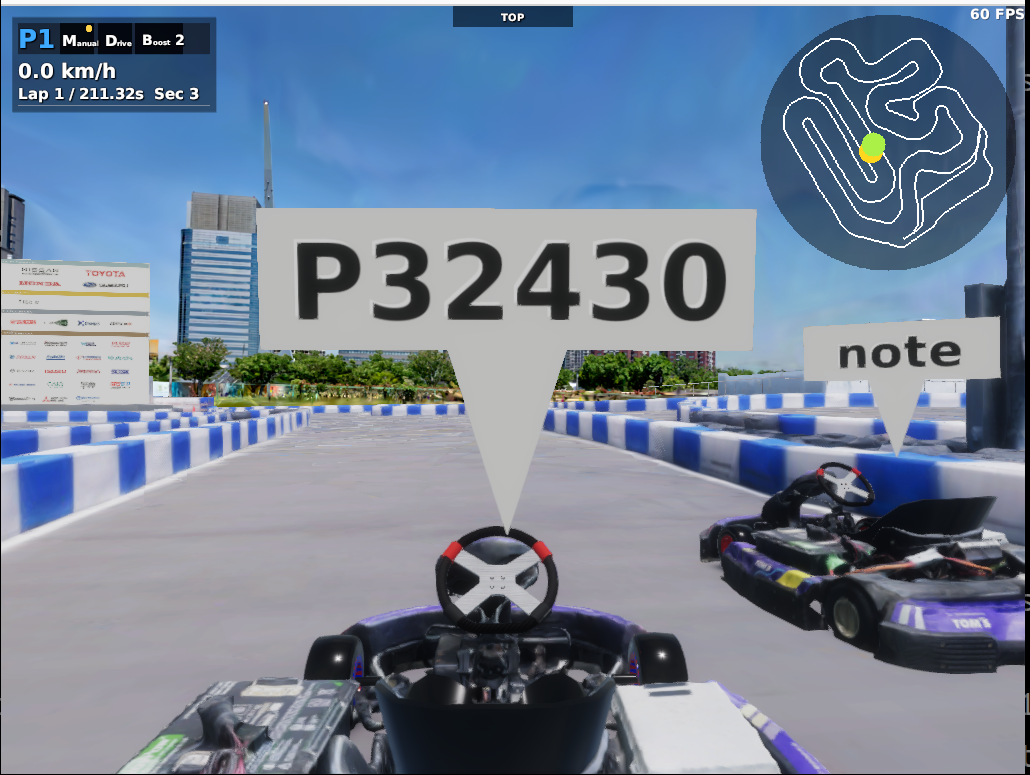
Most important: --multiplay-address takes the server (host) IP
--multiplay-address is the IP address of the server (host) you are connecting to. It is not your own PC's IP address. Putting your own IP here is the most common mistake.
Setting a player name (optional)
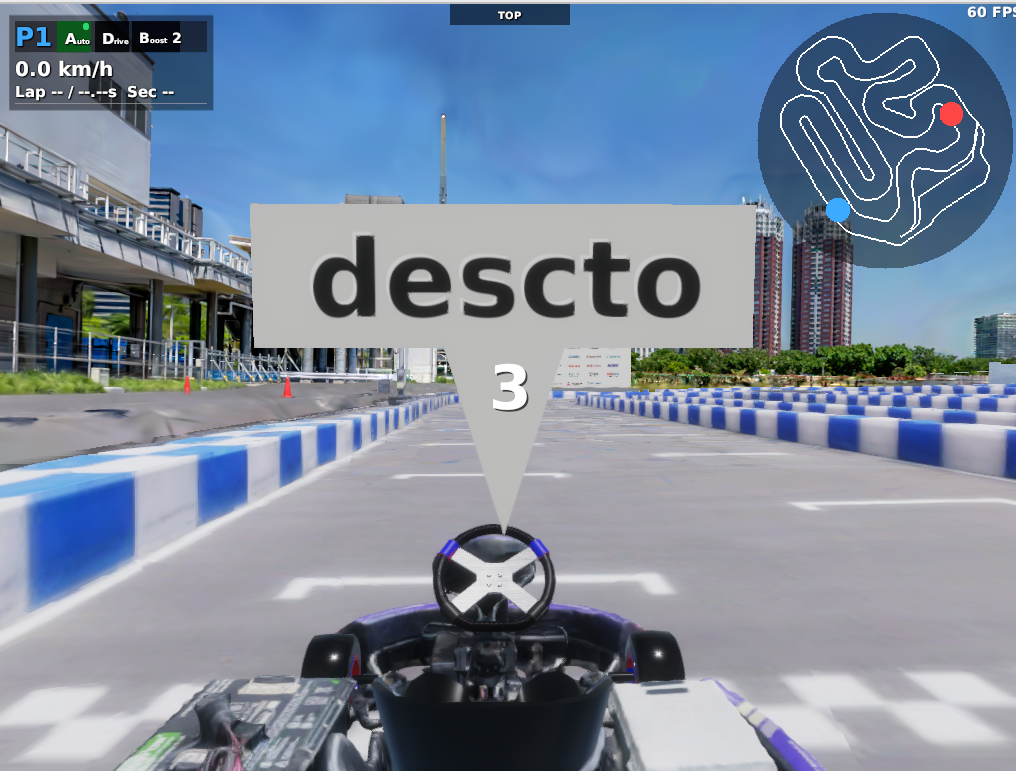
Add --multiplay-name to show a name of your choice (up to 6 characters) on the label above your kart. Without it, an auto-generated ID like P32430 is shown instead (the front kart in the screenshot above).
Add the following to each host / client script. Including --start-mode count makes the countdown start automatically once every kart touches the ground:
    --multiplay-name descto \  # ← your name (up to 6 characters)
    --start-mode count \
Once every kart touches the ground, the countdown starts and the race begins.
Server + client setup (dedicated server)
The steps above use the host setup (one person acts as both server and player), but you can also run a dedicated server that nobody drives, with everyone joining as an equal client.
Launch the server directly, not through Docker
The make commands (Docker) can only run one simulator per PC. To run a server and a client on the same PC, launch the server side by running the AWSIM binary directly, without Docker.
On the server PC, run the binary directly:
./aichallenge/simulator/AWSIM/AWSIM.x86_64 --multiplay server --multiplay-port 7777
Alternatively, launch it without arguments and set Multiplay to server in the startup settings UI.
Then everyone joins as a client:
- On the same PC as the server:
make simulator-multiplay-client(keep the default127.0.0.1as the address) - On other PCs: change
--multiplay-addressinmultiplay-client.shto the server's IP, then runmake simulator-multiplay-client
Connecting Autoware / recording rosbags (optional)
You can also connect Autoware for autonomous driving with make autoware-simulator, or attach to the Docker container with make autoware-attach to record rosbags — including LiDAR and camera data, of course.
Troubleshooting
If you cannot connect, check the following in order.
1. Verify reachability with ping first
From the client PC, ping the host's IP:
ping <host IP>
If ping fails, client-to-client traffic is blocked on that Wi-Fi (AP isolation). This happens on office/school Wi-Fi and some Android tethering setups. The quickest fix is to tether from a different phone (iPhone hotspots generally allow it).
2. Allow UDP 7777 through the host's firewall
Make sure inbound UDP port 7777 is not blocked on the host:
sudo ufw allow 7777/udp # if you use ufw
3. Read the banner at the top of the screen
MULTIPLAY START FAILED: <reason>— the initial connection failed; check the displayed reason (the game keeps running offline afterwards)MULTIPLAY CONNECTION LOST— reception from the host stopped after a successful connection (host quit, Wi-Fi dropped, etc.)
4. Other common patterns
| Symptom | Cause and fix |
|---|---|
| A second player cannot join | Duplicate --multiplay-network-id. Keep the default 0 (auto-assign) |
| Launching two instances on one PC fails | UDP port collision. Change one side's --multiplay-port (e.g. 7778) |
| Others cannot see your kart | Make sure --vehicles is at least --multiplay-vehicle-index |